


AI tools increasingly mark what they make, on purpose, so that people can tell. There are three well-known ways they do it, and Google's Gemini can put all three on the same picture. Each one is checked differently, and each one gets lost differently.
1. A visible mark in the corner
The simplest mark is one you can see. Google's Gemini app puts a small see-through sparkle in the bottom-right corner of the images it makes. Look there first.
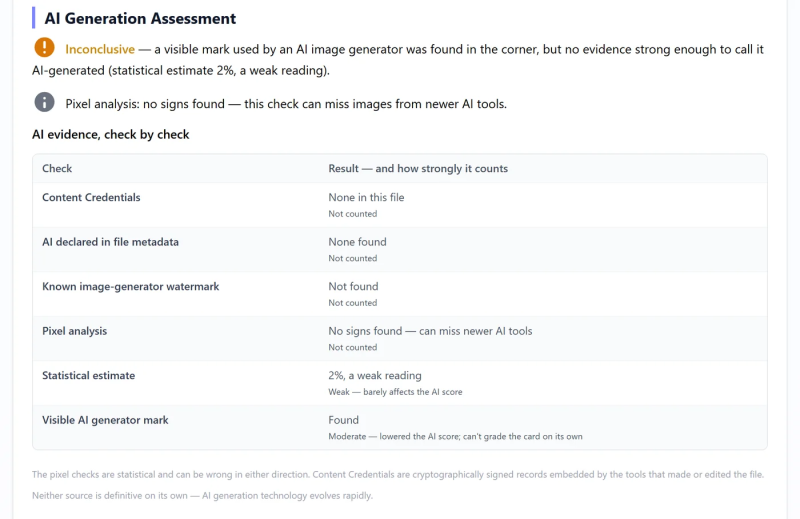
Upload the image to snapWONDERS and the report checks that corner for you. When it finds the Gemini sparkle, the Watermark card at the top of the report reads Found, the "Contains digital watermarks?" row reads "A visible mark used by an AI image generator was found in the corner of the picture", and the AI evidence table has a "Visible AI generator mark" row reading Found.
Today the check knows one mark, Gemini's sparkle, and it runs on photos, not video.
How it gets lost: a crop. Trim the corner off and the mark is gone. Many Gemini users can also switch the sparkle off in the app's settings, though not on every account or in every country.
2. An invisible watermark in the pixels
The second kind of mark can't be seen. It is woven into the pixels across the whole picture, so the image looks unchanged, but software built for it can read it.
- Open watermarks come from watermarking tools that vendors have published for anyone to use. snapWONDERS checks photos and videos for invisible watermarks from these widely available tools. When one is found, the watermark row ("Contains digital watermarks?" on a photo, "Contains watermarks?" on a video) says "An invisible watermark from a widely available watermarking tool was found".
- Closed watermarks belong to one company, and only that company and its partners can read them. Google's SynthID is the best known: Google and OpenAI both add it to their AI images, and you check it by uploading the file to Google's SynthID Detector, or to OpenAI's verify tool for OpenAI's own images. Our checks can't read it. What we can read is the file's signed record when it says one was applied: the watermark row then reads "Its Content Credentials declare an invisible AI watermark was applied when it was made".
A found watermark tells you someone applied it, not that AI made the picture. These tools can mark any image, including a real photo. That is why the finding sits on the watermark row and never, on its own, makes the AI card say "AI".
For video, the check looks at part of the clip, so a watermark on only a short stretch can be missed.
How it gets lost: with difficulty. Invisible watermarks are built to survive re-saving, resizing and sharing. Heavy edits weaken them, and redrawing the picture with an AI model can wash them out, but that takes deliberate effort.
3. A signed "made with AI" record in the file
The third kind travels in the file rather than the picture: C2PA Content Credentials, a signed record of which tool made the file and whether it was AI-generated. Google and OpenAI add one to their AI images. The report verifies the signature and shows the record in the C2PA Content Credentials section; the AI evidence table's Content Credentials row says whether one was found. Is this photo real or AI-generated? shows a signed Gemini record in a real report.
Some apps write a simpler, unsigned label instead: a standard metadata field saying the image was created, or edited, with generative AI. The "AI declared in file metadata" row reports it.
How it gets lost: easily. A screenshot drops it, and so does any app or upload that strips the file's details.
The Watermark card
The Watermark card at the top of every report sums up all of these checks in a word:
- Found: a visible generator mark, an open watermark or a known image-generator watermark.
- Declared: the Content Credentials say a watermark was applied, but our checks didn't find one. That is expected for closed watermarks.
- No: every watermark check ran and found nothing.
- Partly checked: nothing was found, but not every check could run on this file.
- Not checked: the watermark checks couldn't run.
- Flagged or Unusual reading: something looked odd, but not enough to call it a watermark.
4. What "none found" means
A mark found is strong evidence that someone marked the file. No mark found proves nothing. Plenty of AI tools add no mark, closed watermarks can't be checked from outside, and every mark here can be lost along the way. The report then relies on the evidence that can't be cropped off: the pixel analysis, the file's history, and whether its details hold together. How to read your report explains the AI card and the evidence table in full.
A worked example: the same Gemini picture, before and after a crop
We took a Gemini image we had made for one of our own articles. It has no writing in it, and the sparkle is in its bottom-right corner. We checked the downloaded file, then a copy with the corner cropped off.

We checked both on 11 November 2026.
-
The original: the Watermark card reads Found, and the AI section reads Inconclusive: "a visible mark used by an AI image generator was found in the corner, but no evidence strong enough to call it AI-generated". The Visible AI generator mark row reads Found.
-
The cropped copy reads Nothing Found by This Estimate, and the mark row reads Not found. One crop took the only sign the file still had.
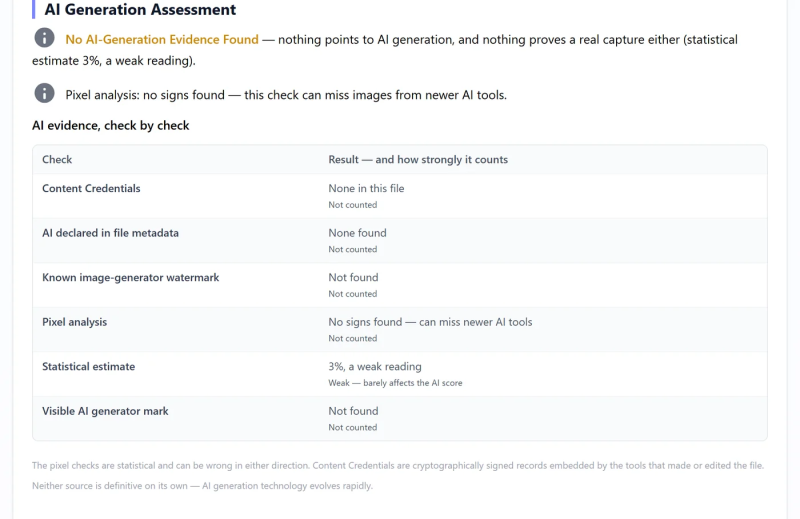


Neither file had Content Credentials. Gemini signs its downloads, so this picture had most likely lost its signed record somewhere between download and our article folder, before we ever cropped it. That is the point of this guide in one file: the sparkle was the last mark left, and a crop removed it.
See it as a before and after: one crop took the AI mark
A worked example: a real photo with an open watermark
We took one of our own photos of a canola field and made a copy marked with a widely available watermarking tool. The two look the same: on average the mark shifts a pixel by less than one shade out of 255.

We checked both on 11 November 2026. The Watermark card reads No for the unmarked photo and Found for the marked copy:

The unmarked photo's watermark row reads:

The marked copy's reads:

Its AI card still reads Nothing Found by This Estimate. That is right: it is a real photo, and the watermark only shows that someone marked it.
A worked example: a video with an open watermark
We marked a clip of our own tram footage with a widely available watermarking tool and checked it on 11 November 2026. The Watermark card reads Found, and the watermark row says why:

The clip's AI card still reads Nothing Found by This Estimate, which is right: the clip is real footage, and the watermark only shows that someone marked it. Is this video real or AI? covers the rest of a video report.
More guides on


